

On screen AI understands content that is visible on a shared or authorized screen. It can explain an error, summarize a page, or suggest what to check next. A context layer serves a different purpose. It connects relevant information across apps and work sessions so the background can remain useful after the screen changes. The right choice depends on whether you need a temporary screen share, context that follows your work across apps, or retained context that becomes more useful over time.
What Is On-Screen AI, and Which Assistant Do You Need?
On-screen AI gives an assistant visual context from your current screen. Some tools use a temporary sharing session, while others can turn authorized desktop activity into context that supports later work.
What Is On-Screen AI?
On-screen AI analyzes visible text, images, controls, and layout so it can answer questions about the current view. A screen aware assistant might explain a warning, identify the setting related to your question, or summarize a dashboard. The screen is only one source of information. Hidden tabs, closed files, earlier discussions, and business rules may be missing. A reliable answer should separate visible facts from assumptions.
Which Three Differences Matter Most?
Compare these three capabilities before choosing a tool:
- How does screen access begin: through a temporary share or authorized desktop context?
- Is the assistant limited to the current view, or can it connect work across apps?
- Does its value end with the session, or can retained context become more useful over time?
This decision matrix keeps the comparison focused:
| Test | Session-Based Screen Sharing | Context-Layer Approach |
|---|---|---|
| Screen access | Starts when the user shares a screen or camera | Uses authorized desktop context according to product settings |
| Help depth | Often explains or guides from the current view | May connect the view to tasks, reminders, or later work |
| After the window closes | Visual input may end with the session | Relevant context may remain available if it was captured and retained |
Which Tools Are Test References?
Three tools provide useful references for session-based screen help. Microsoft's Copilot Vision guide says users start Vision during a voice conversation and choose to share a desktop screen or mobile camera. OpenAI's Voice documentation explains which current voice mode supports mobile screen sharing. Google's Gemini Live guide describes user-controlled screen sharing on supported Android devices. These references help verify access patterns. They are not product recommendations, and availability may vary by plan, device, region, or update.
When Can the AI See Your Screen?
An AI can see your screen only when the required sharing or capture conditions are active. The important difference is whether access starts with a live share or through desktop permissions and capture settings. In brief, Copilot Vision, ChatGPT screen sharing, and Gemini Live begin with a user choosing to share a screen or camera feed. AirJelly instead focuses on authorized desktop context that can support work across apps according to the user's capture settings.
Does It Require Manual Screen Sharing?
Many on-screen assistants require you to start a voice or screen-sharing session. Test that boundary by asking what is visible before sharing, after sharing one window, and after switching apps. Stop sharing and ask again. Record whether the tool sees one window or the full screen. Also check whether sharing ends when the app closes or the device locks. The goal is to confirm the access boundary, not to reward the tool that sees the most.
Can It Follow Authorized Work Across Apps?
AirJelly uses authorized desktop context rather than relying only on a one-time live share. Our context guide explains that Screen Recording can provide information about the active app, window, written content, and visible work state. Smart Capture behavior depends on the operating system, settings, and user interactions. For a practical test, open a browser, document, and work chat in sequence. Ask what task appears to be active in each app. Check whether the response matches the visible content and admits when information is unavailable.
Can You Pause or Exclude Capture?
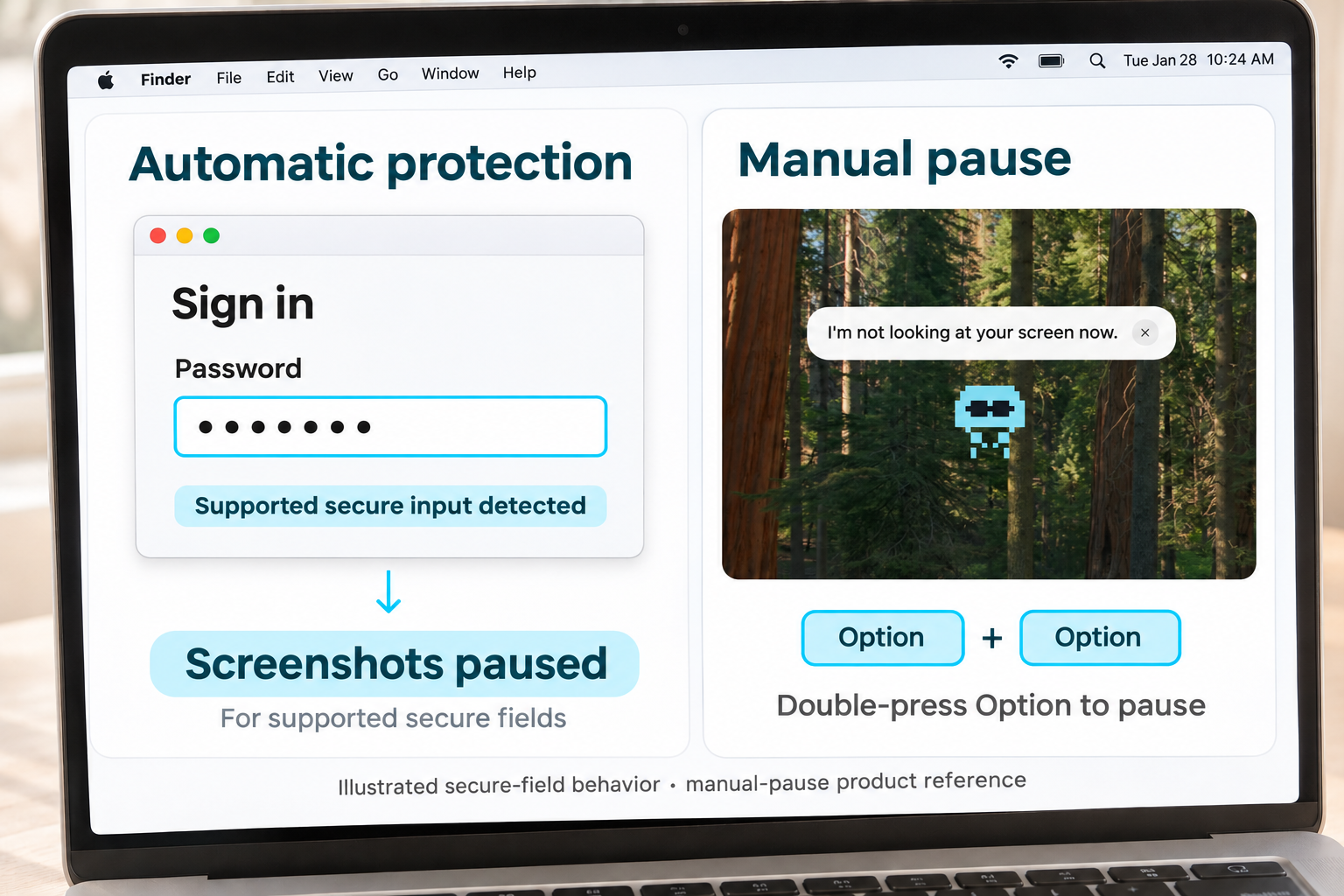
Yes. AirJelly lets users pause capture and exclude selected apps. Our privacy controls also explain that smart screenshots pause when AirJelly detects a secure input field reported by a supported app. AirJelly gives you direct ways to control capture. On Mac, you can double-press the Option key to pause screenshots, ask AirJelly in natural language to pause capture, or exclude selected apps in Settings. Closing unrelated windows and hiding notifications adds another layer of protection.
Can It Explain, Guide, or Support Follow-Up?
Screen access does not tell you how useful the answer will be. Test explanation, guidance, and follow-up separately because they require different levels of context. Copilot Vision, ChatGPT, and Gemini Live can help users discuss content in an active sharing session. AirJelly extends the workflow by connecting authorized visible context with retained information that can support a later task, review, or supported follow-up workflow.
Can It Explain the Visible Issue?
Show the assistant a page with a clear error or uncertain status. Ask what is wrong and which visible details support the answer. A useful response should identify the message without pretending to know a hidden cause. Check the response against the original page. Small text, covered controls, or missing logs can change the conclusion, even when the assistant sounds confident.
Do You Need Instant Help or Context That Builds Value Over Time?
A session-based assistant can be useful when you need a quick explanation of the screen in front of you. AirJelly is designed for a longer time horizon: authorized context can be retained and connected across later work, so you do not have to rebuild the same background each time. The practical choice is not simply whether an assistant can suggest a next step. It is whether you need help for one moment or context that becomes more useful as your work continues.
Can It Preserve a Follow-Up?
Show a message with a task, owner, and due date. Ask the assistant to identify all three, then check whether the product can retain the supporting context for a later task, review, or supported follow-up workflow. At AirJelly, we connect visible work with context that can support later follow-up. The result still depends on the current feature, settings, and captured information. Confirm what was actually saved instead of assuming that recognizing a date automatically created a task.
What Does the AI Remember After You Close the Window?
A session-based assistant may lose visual input when sharing stops. A context layer is designed to make selected background reusable across later questions and work sessions. For Copilot Vision, ChatGPT screen sharing, and Gemini Live, stopping the user-initiated share ends access to the live visual feed. AirJelly's context-layer approach is designed to make retained, authorized work context available after the original window or capture moment has passed.
Does Context End With the Session?
Test this with a task that includes a project, owner, and due date. End the share, close the window, and start a new conversation. Ask for the details without showing the page again. If the tool cannot answer, the screen feature may still have worked as designed. The result shows that its visual context was session-bound. If it can answer, check whether the source was a chat transcript, saved image, connected app, or dedicated context system.
Can It Retrieve Context Across Apps?
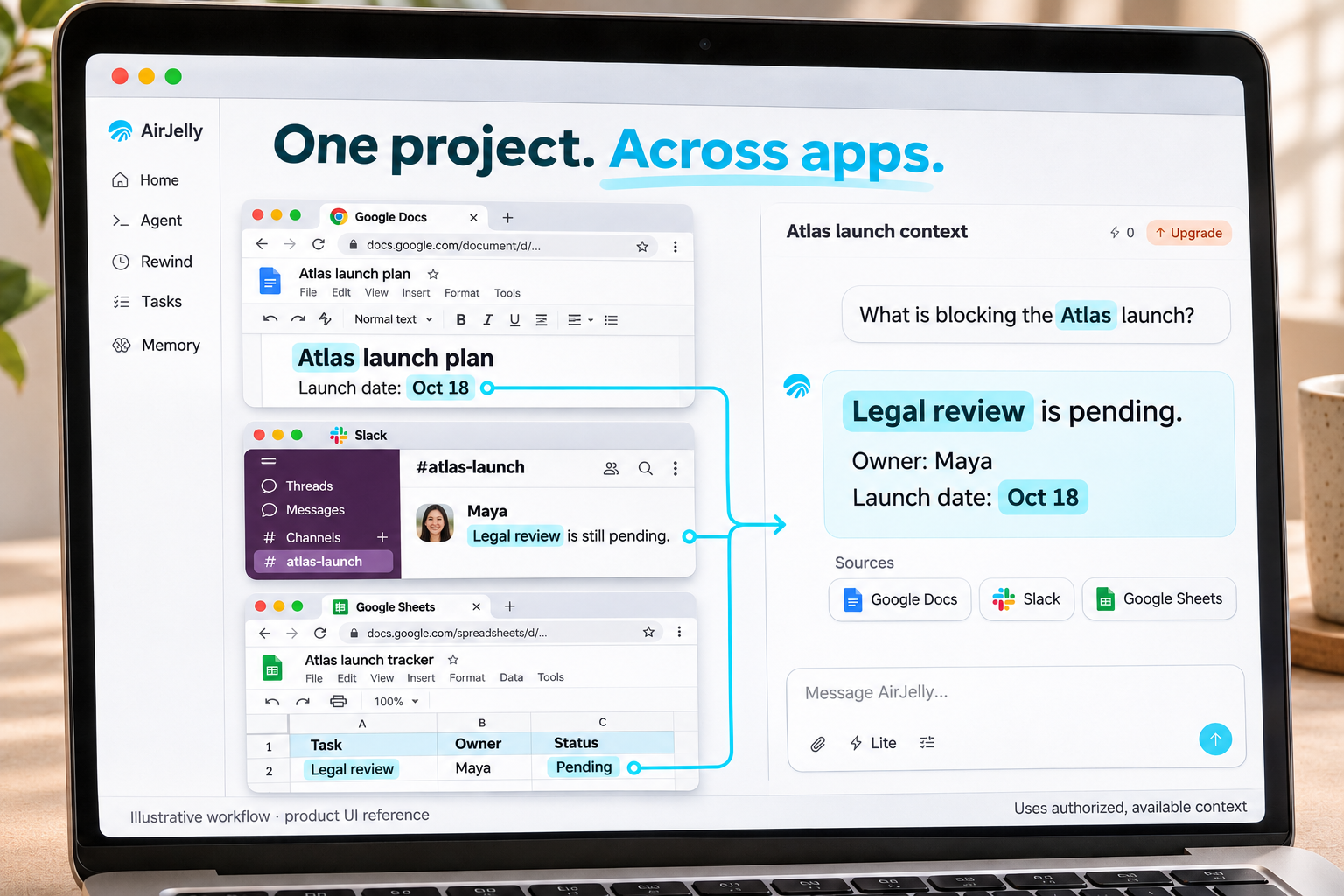
Open a project task, then view the related discussion in another app. Close both windows and later ask for the status, decision, and next step. Check the response against both sources. AirJelly can build context from authorized visible desktop activity, interaction signals, connected sources, and the user's collaboration with AirJelly. Conversations, corrections, task outcomes, routines, and preferences can become reusable long-term context. Missing or excluded information may still limit the answer.
How Does a Context Layer Help?
Suppose you review a project document on Monday and close it. On Tuesday, you ask, “What decision did I review, where did it come from, and what should I do next?” A one-time on-screen AI assistant may need the document again. A context layer can connect the earlier screen activity, app information, and available task background. That is the practical difference: on-screen AI helps with the current view, while a context layer helps you continue the work.
Turn Screen Activity Into Useful Context
AirJelly may fit when your work moves across desktop apps and you often repeat the same background. It is designed to connect authorized screen activity with context that can support later recall and follow-up. Review the permissions and cloud-processing details first, then test it with a low-risk task. Explore AirJelly On-Screen AI and check the three things that matter: when it can see your screen, how it helps, and what remains useful after the window closes.
Frequently Asked Questions
Q1. Is On-Screen AI the Same as OCR?
No. OCR extracts text from an image, while on-screen AI can use text, layout, images, and your question to interpret the current view. OCR may be one part of the process, but it does not provide the full reasoning or guidance.
Q2. Can AirJelly Connect Context Across Multiple Apps?
Yes, when the relevant apps and information are available through your authorized capture settings. AirJelly can connect visible work across supported apps, while excluded or uncaptured information remains outside its context.
Q3. Does Screen Sharing Let the AI Control My Device?
No, not by itself. Screen access and device control are separate permissions and capabilities. Confirm whether a tool can click, type, or take actions, and review each approval step before enabling control.
Q4. Can On-Screen AI Work Without an Internet Connection?
Partly. When your device is offline, AirJelly can continue capturing screenshots and storing them on your device. An internet connection is required to understand the screenshot content. Once the connection is restored, you can continue using On-Screen AI.
Q5. When Is a Context Layer More Useful Than a One-Time Screen Share?
A context layer is more useful when your work spans multiple apps or continues over time. Instead of starting from zero in each session, AirJelly can use retained, authorized context to help you recall what happened and continue the work.