

An AI that can see your screen and help can answer questions about your current task. It can explain an error message, review a spreadsheet, or help you find a setting. There is no need to copy everything into a chat. The AI uses what is visible on your screen to provide answers and suggest next steps. It can save time, but it may still miss important context. Always double-check its advice before taking action.
How Can AI Read Your Screen and Answer Questions?
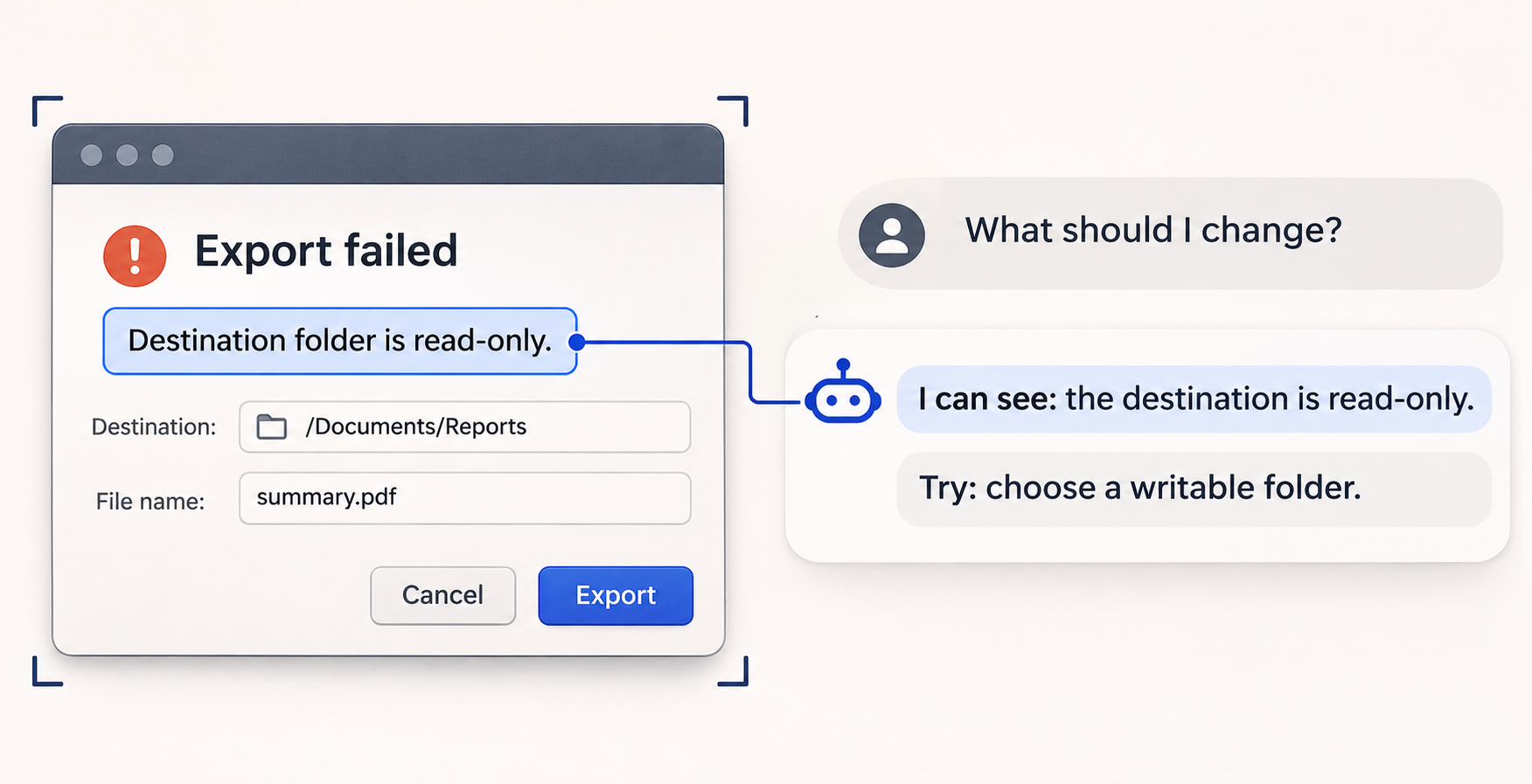
An On-Screen AI works from an authorized view of your display or active window. It may read visible text, images, menus, buttons, layout, and the current state of an app. Your question gives that information a purpose. Instead of simply describing the whole screen, the AI can focus on the part related to what you need. Think of it like showing a coworker your laptop and asking, “What does this error mean?” It still does not automatically know everything about the app, your account, or the work that happened before this moment.
What Happens When You Ask About Your Screen?
The basic flow is straightforward:
- You give the app permission to view the relevant screen or window.
- The assistant receives a current view of what is visible.
- You ask a specific question about that view.
- The AI explains what it sees or suggests a next step.
For a simple hands-on example, open a settings page with an unfamiliar warning and ask, “What is this message telling me, and what should I check first?” A useful answer should identify the visible warning, point to the relevant setting, and clearly separate what is shown from what it is inferring.
If you click to a new page, the assistant needs an updated view. It cannot reliably answer from a screen state it never received. Our screen understanding can support this kind of question across a desktop workflow, including setups with multiple displays.
Is This the Same as a Screen Reader?
No. A traditional screen reader is an accessibility tool that converts interface information into speech or braille so people can navigate a device. An On-Screen AI interprets visible content in response to an open-ended question. Someone may use both, but the tools solve different problems and should not be treated as interchangeable.
What Can an On-Screen AI Help You Do in Different Apps?
The most useful tasks are usually simple: explain a page, review visible information, or suggest what to try next. The answer depends on how much of the task is visible.
How Can It Help in Browsers and Documents?
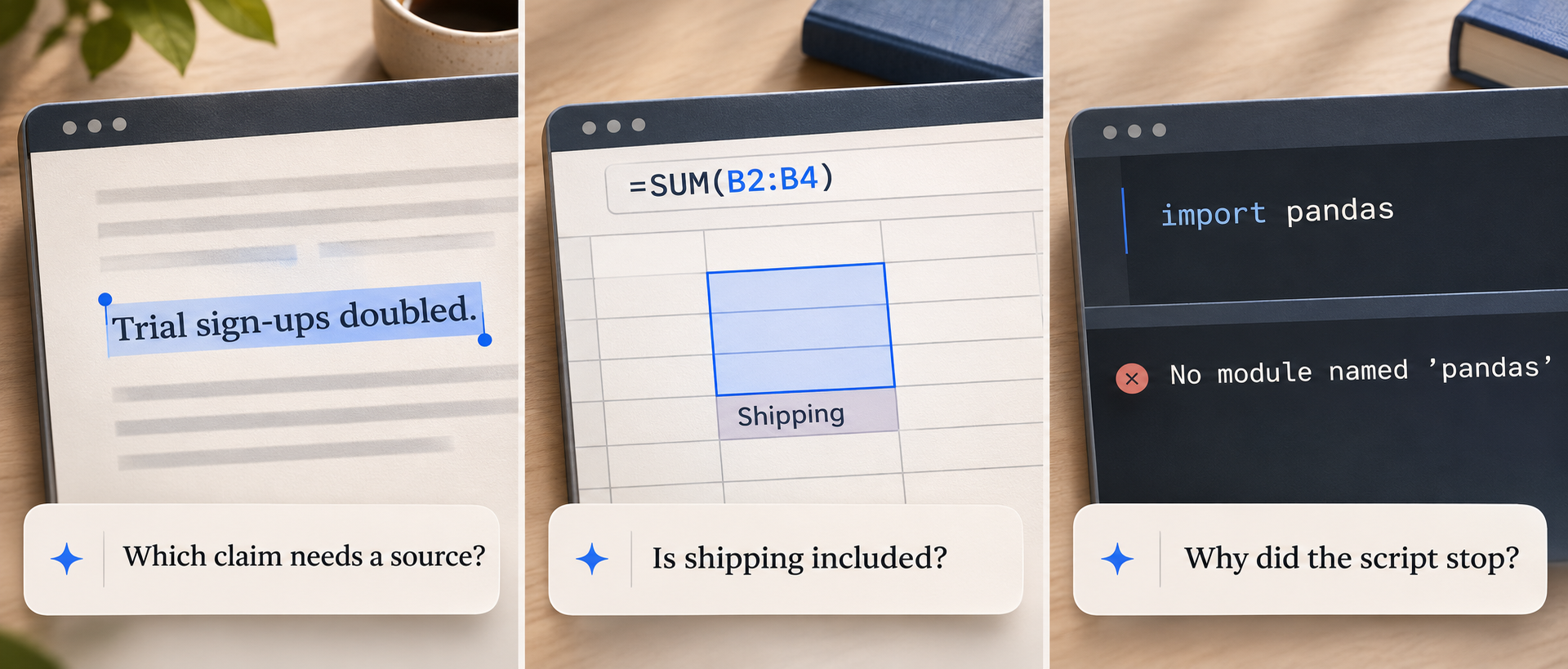
In a browser, you could ask the AI to explain a dense paragraph, compare the options currently on a page, or help you locate a setting. In a document, you might ask, “Does this section make sense?” or “Which claim still needs support?” Because the assistant can work from the page you are viewing, you do not have to paste an entire article into a separate chat. Be specific. “What am I looking at?” invites a broad answer. “Which option lets me change notification settings?” gives the AI a clear target.
Can It Make Spreadsheets Easier to Understand?
Yes, especially when you need help making sense of what is visible. You can ask what a formula appears to calculate, why a chart may not match the displayed rows, or which cell looks inconsistent with the rest of a table. The word “visible” matters. Hidden rows, filters, linked sheets, source data, and workbook rules may change the result. A screen-aware assistant can point you toward a likely issue, but it cannot validate information it cannot access. Before making a business or financial decision, check the formula and underlying data yourself.
What About Code, Settings, and Work Apps?
In a code editor, the AI can explain a visible error or suggest a few diagnostic steps. In system settings, it can help you find the control that matches your goal. In project tools, calendars, or design software, it can summarize what is on screen and help you decide what needs attention. For example, if a task card shows a missed due date and an unresolved comment, you could ask, “What is blocking this task, and what should I follow up on?” The answer may help you get oriented quickly. It may still miss a private message, an unopened attachment, or a dependency stored somewhere else.
What Can It See, and What Context Can It Miss?
An AI that answers questions on screen only knows what its permissions and current capture make available. That boundary is easy to forget when the answer sounds confident.
What Usually Comes Through Clearly?
Clear, stationary content is generally the easiest to interpret. That can include:
- Text, labels, menus, buttons, and notifications
- Tables, charts, images, and page layout
- The active app, window, and current interface state
- Information exposed through permitted accessibility signals
If the screen is crowded, zooming in or closing unrelated windows can give the AI a better view.
What Might the AI Miss?
Anything outside the captured area may be missing. That includes off-screen rows, collapsed comments, hidden tabs, covered windows, excluded apps, unopened files, and disconnected conversations. A screenshot also captures only one moment. A loading spinner, pop-up, animation, or fast-changing dashboard can make that moment incomplete or misleading. Even perfect text recognition does not provide the full story. The AI may read a project decision correctly but still lack the customer history or internal rule that explains why the decision was made. Small text, low contrast, overlapping windows, and unusual interface designs can create additional errors.
How Can You Check Whether the Answer Is Reliable?
Ask the assistant to show its work in plain language: “Which details on the screen support that answer?” Then ask, “What information can’t you see?” These two questions make it easier to spot guesses and missing context. For money, legal obligations, security, health, or irreversible changes, use the answer as a starting point. Confirm key details in the original source. We can connect a one-time screen question with reusable work context. With the appropriate Screen Recording and Accessibility permissions, we can understand available information about the app, window, visible content, and interaction signals. Conversations, corrections, task outcomes, routines, and preferences may then contribute to longer-term context. That added context can make later help more relevant, but it does not remove the basic limits of what the assistant can see.
Is It Safe to Let an AI Read Your Screen?
It can be, but screen access deserves the same care as sharing your screen on a call. A desktop may contain private messages, customer details, financial information, passwords, or work that belongs to someone else. The safest setup combines operating-system permissions, product controls, and sensible habits.
Start With the Permissions You Grant
Your operating system is the first checkpoint. On macOS, you can review which apps have screen and system audio recording access and switch access on or off. Windows also lets you review app permissions, although the available controls vary by app and permission type. Do not approve a request just because a button appears. First ask whether the permission matches the feature you want to use. If you stop using the feature, review whether the app still needs access.
Keep Sensitive Information Out of View
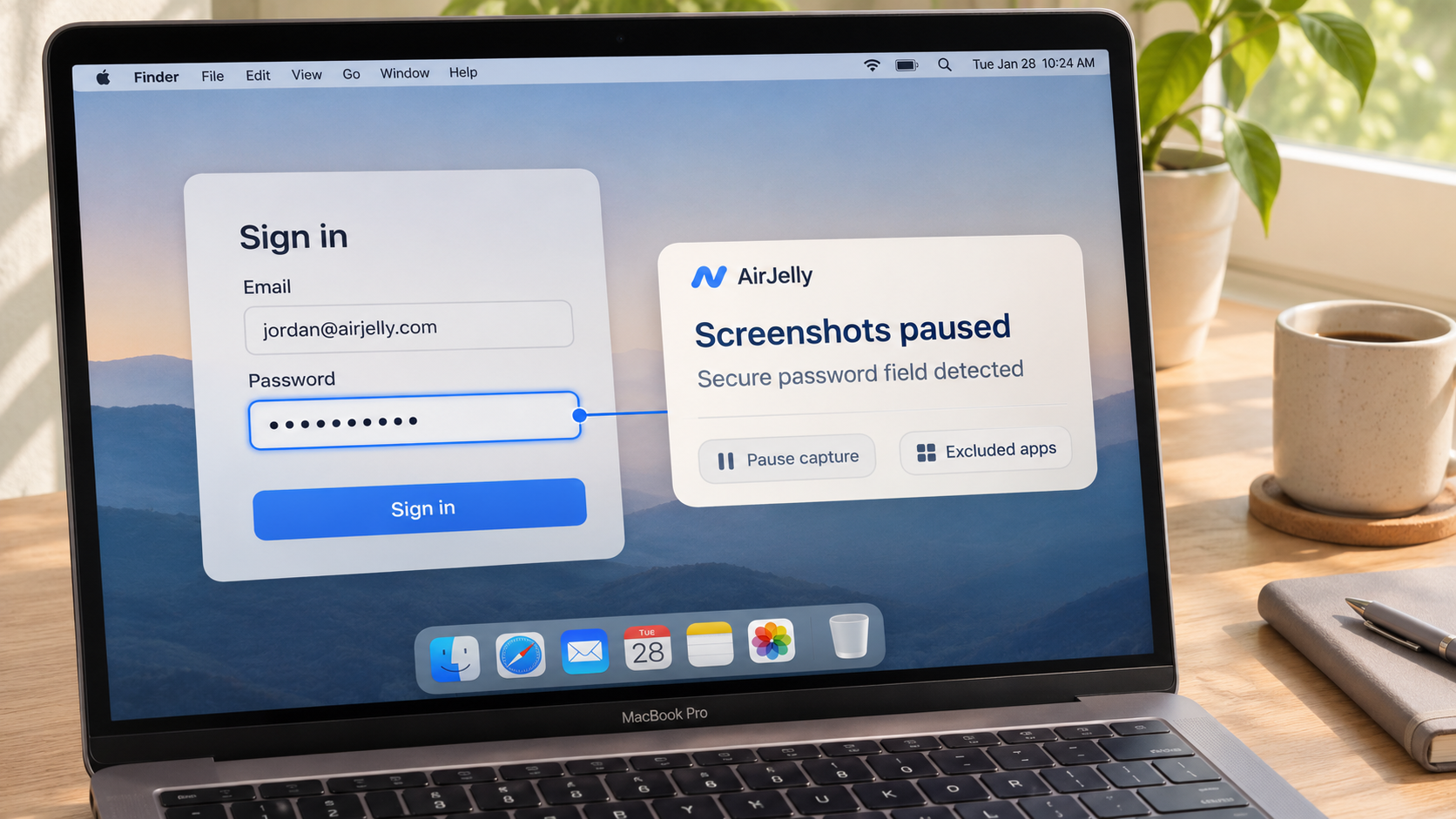
Before asking for help, close unrelated windows, hide notifications, and move sensitive files off screen. Avoid displaying passwords, private client records, personal conversations, or payment details unless they are essential to the task. We let you pause capture and exclude selected apps. When a supported app reports a secure input field, we skip reading text from that field and pause smart screenshots. These controls help reduce exposure, but they do not replace checking your screen before you share context.
Know Where the Data Goes
Screen access and data storage are not the same thing. Check what the product captures, where it stores that information, whether cloud services receive it, and how you can pause or delete collection. The FTC also recommends reviewing an app’s privacy settings and permissions so you understand how your information may be used. Our privacy page explains that screenshots are encrypted and stored on your device. When screen understanding is enabled, screenshots are encrypted before transmission for remote processing, together with relevant text context. Other AI features may also send relevant context. We do not use your work context to train our AI models, and we do not sell personal data for advertising or marketing. A good routine is simple: exclude apps you never want captured, pause before opening sensitive material, look over the screen before asking a question, and verify the answer before acting. On a work computer, follow your employer’s security and data-handling rules too.
Want Your Screen Context to Become Useful Memory With AirJelly?
Getting an answer about the screen in front of you is useful. Keeping the right background for tomorrow's task can be even more valuable. We designed AirJelly to connect visible desktop context with longer-term work memory, so a question does not have to end as a one-off chat. If you want a screen-aware assistant that can help now and build useful context over time, explore AirJelly On-Screen AI. Start with the permissions you are comfortable granting, set your capture exclusions, and try it on a low-risk everyday task.
Frequently Asked Questions
Q1. Can AI See Everything on My Screen?
No. It can only use the screen area, windows, accessibility signals, and connected sources available through its permissions and current capture state.
Q2. Can On-Screen AI Click Buttons for Me?
Sometimes, depending on the product and action. Seeing a screen, explaining it, and controlling an app are separate capabilities. Check which actions the product supports and whether it asks for approval first.
Q3. Does AirJelly Work on Phones or Tablets?
No, not currently. We support Apple Silicon Macs running macOS 12 or later and x64 PCs running Windows 10 or later. Phones, tablets, Intel Macs, Windows on ARM, 32-bit Windows, and Linux are not yet supported.
Q4. Can I Stop AirJelly From Capturing an App?
Yes. You can pause capture or add selected apps to the exclusion list in Settings. AirJelly automatically recognizes supported password fields and does not capture password content. On Mac, you can also double-press the Option key to pause screenshots manually.
Q5. Should I Trust an AI Answer About My Screen?
Check important details before you act. Screen-aware AI can explain visible information and suggest next steps, but hidden context, poor capture quality, and model errors can affect the answer.