The workflow: record, recall, verify, continue
A task rarely stays in one app. You read a request in a browser, discuss a decision in a conversation, then open your coding agent. The agent needs that background as well as the files it can already inspect.
AirJelly turns the work you allow it to observe into context that supported agents can retrieve through Recall. Start with one real task and a small test: find the last confirmed decision, open the evidence, and use it to choose the next step.
1. Make sure the work context exists
If you are new to AirJelly, follow the installation and sign-in guide. Allow capture for the work apps you want to include, then use those apps for a real task.
Open Rewind or Chat to check that the relevant activity is present. A new installation will not have screen history from before you started recording. If the work happened in an excluded app or while capture was paused, do not expect Recall to reconstruct it.
Choose a project name, a rough time range, and one question. A narrow request is easier to verify than asking an agent to remember everything.
2. Connect Claude Code or Codex in Recall
- Open Recall in AirJelly and choose the supported agent you use.
- Follow the connection dialog for your installed version. It guides you through preparing context, installing the plugin, and checking the connection.
- Complete the connection check before asking the agent to use AirJelly context.
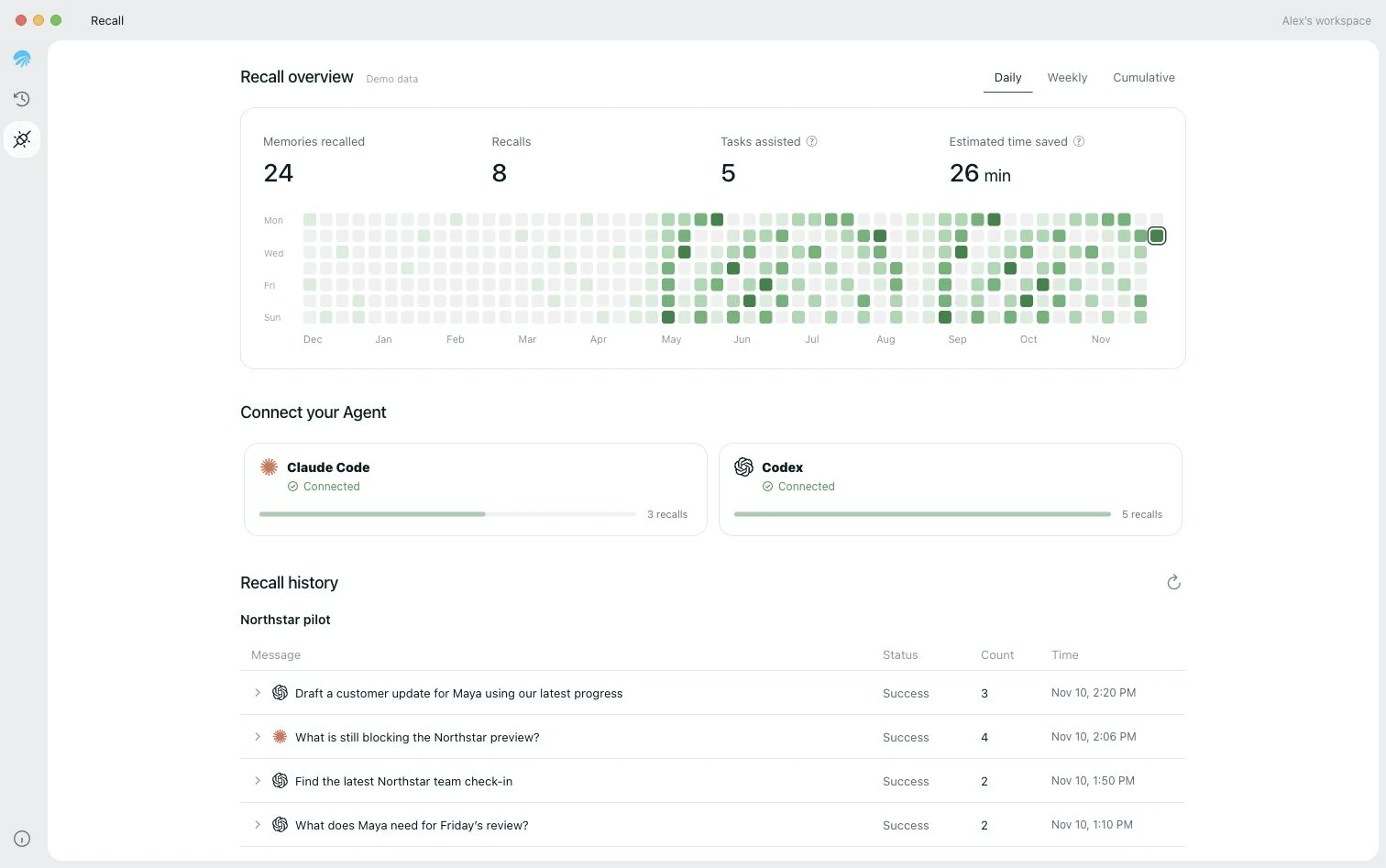
Use the setup instructions displayed in AirJelly rather than copying an old command from a blog post. The Recall overview explains connection controls and conversation history.
3. Ask for the last decision and its sources
In your connected agent, ask a bounded question. Replace the project name and time range in this example with your own:
Use AirJelly to find where I stopped on [project] yesterday. Return the last confirmed decision, unfinished work, and the original source records. Separate recorded facts from guesses. Do not change files or send messages yet.
Check whether the answer is about the right project and time. Open the returned sources where available. A plausible summary without supporting records is not enough to establish what happened.
If the result is too broad, add a document title, app name, or narrower time range. If there is no matching record, say what is missing instead of asking the agent to fill the gap.
4. Continue one concrete task
After checking the background, choose one action. For example, ask your agent to compare the current implementation with the requirement you found:
Use the confirmed requirement from [source]. Inspect the current project files and recent changes, explain what is already done, and propose the next small change. Ask before taking any action that needs my approval.
A remembered decision may be older than the current code or a later conversation. Let the agent inspect the present state before making a change. Context explains why work was planned; it does not prove that the plan is still current or grant new permission to act.
Useful first tasks include recovering an unfinished bug investigation, checking a requirement discussed outside the repository, or drafting an update from verified progress. Use a task whose result you can inspect.
5. Check the recall history and the outcome
Return to Recall to review activity grouped by agent and conversation. Use the conversation title to find the relevant history. Then check the result in your work surface: did the agent use the right requirement, avoid an outdated assumption, or help finish the step you chose?
- Connection: the supported agent can access Recall.
- Evidence: it retrieved a relevant record with enough context to verify.
- Outcome: you confirmed that the record helped continue the task.
Keep these checks separate. A connection badge or a recall count alone does not show whether the task result was useful.
If the agent cannot find the right context
- There are no relevant records in AirJelly.
- Check the capture time, excluded apps, and whether capture was paused. Record the relevant work before testing again.
- Records exist, but the agent cannot retrieve them.
- Check the connection in Recall and follow the update or connection guidance for your installed plugin. Confirm that access has not been paused.
- The answer is about the wrong task.
- Specify the project, time range, and source you are looking for. Verify the returned record before continuing.
- The record conflicts with the current project.
- Compare its timestamp with the latest files and decisions. Explain the conflict and use the current verified state.
Choose the context you share
Use capture controls to choose which work is recorded. Recall connection controls govern agent access; pausing an agent connection and pausing screen capture are different choices. Review the privacy and security controls before including sensitive work.
When you are ready to try the workflow, install AirJelly and begin with one task you can verify.